
Know a little more
See available caller names, business details and badges when a call comes in. Review the screening explanation in your call history.
Caller ID & screening for Android
Meet unfamiliar calls with a little more context. Intro brings together AI-assisted screening and your trusted circle to help you decide who gets through.
For Android. Availability depends on the Google Play rollout.
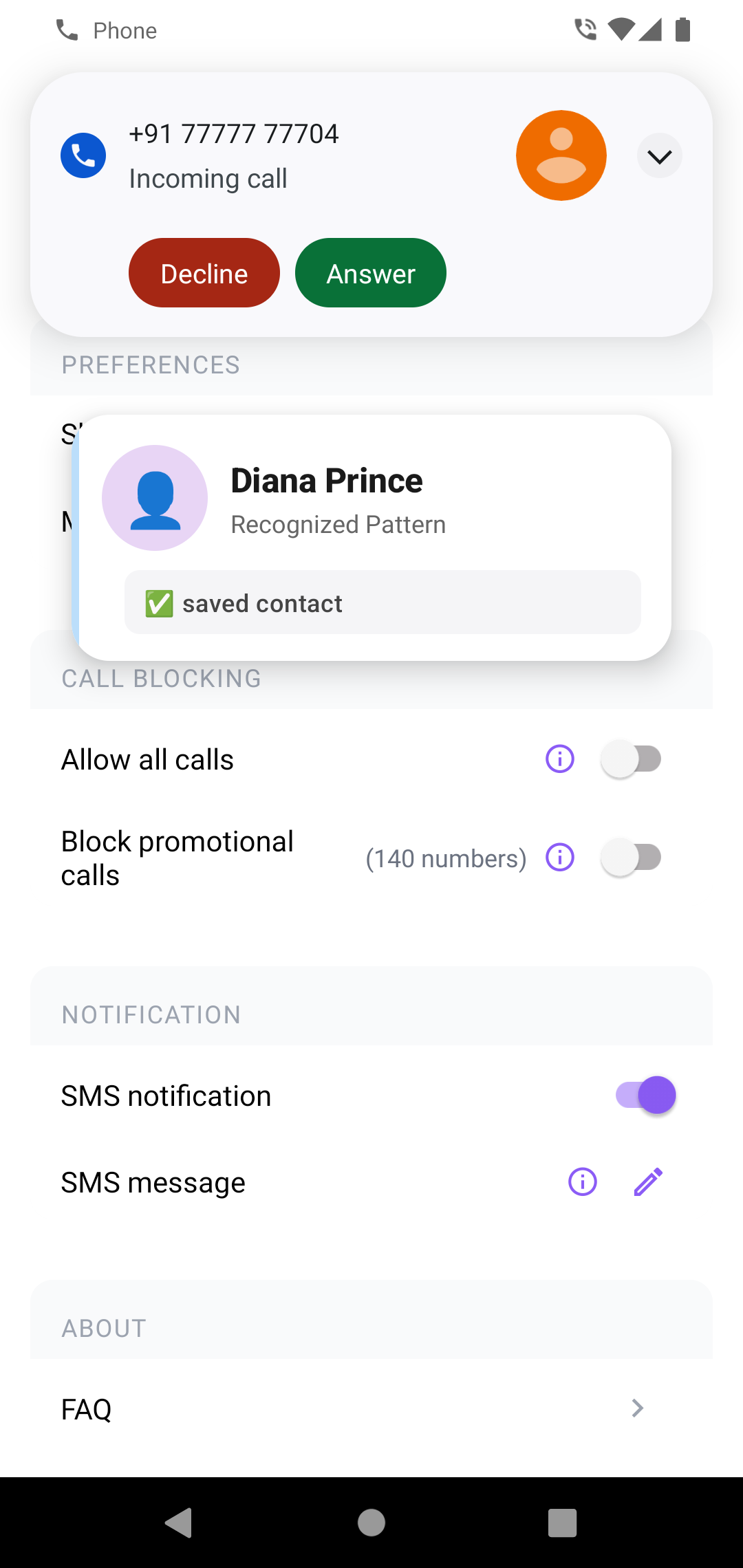
Actual app screen · Demo account
It started with my father
The story behind Intro ↗“A scam caller tricked my father into sharing an OTP and stole his money. I built Intro to help people make more informed decisions about the calls they receive.”
A better introduction
An unfamiliar number doesn't tell you much. Intro adds the information available, so you can make a more informed choice.
See available caller names, business details and badges when a call comes in. Review the screening explanation in your call history.
AI-assisted spam assessment works with trust signals and caller information to help screen unfamiliar numbers.
Manage trusted contacts, explore connections through your network, and review requests for an introduction.
Four ways to make it yours
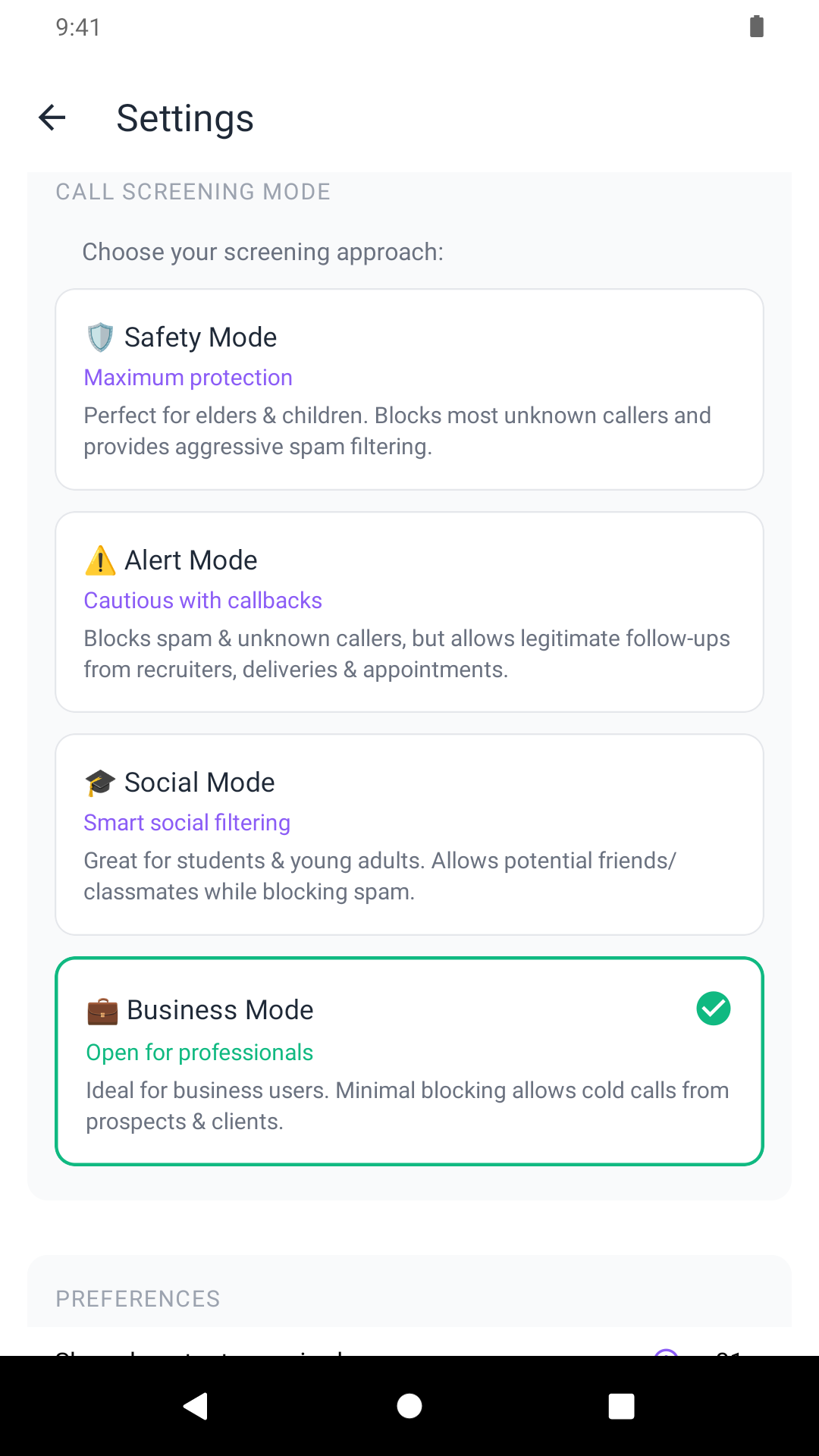
Some days, you want a quieter phone. Other days, you need to be reachable. Choose a mode in Intro to match.
Stricter screening for unknown callers, with the focus on people you already know.
Explore the modes here. Change your actual preference in the app.
Get acquainted
Intro screens incoming phone calls, even when you're outside the app. Set it up once, then make it your own.
Sign in and follow the setup steps. Select Intro as your caller ID and spam app in Android, and enable the requested screening access.
Pick a screening mode and add expected callers to your trusted contacts. You can also turn blocking off with “Allow all calls.”
Receive a call to see screening in action. Open Call History afterwards to review the available caller details and screening explanation.
A personal reason to build
“After my father was scammed over a phone call, I wanted to build something that could help people pause, see more context, and make a better decision before trusting a caller.”
The story behind Intro · Trillion Lines of Code
A few things to know
Something else on your mind?
Get in touch with us ↗
No. Caller information and screening are decision aids, not a guarantee. Names, business details and verification appear when available; some numbers may remain unidentified. Never share an OTP, PIN or password with a caller.
Add the number to your trusted contacts, choose a more open screening mode, or turn on “Allow all calls” in Settings. You stay in control of how restrictive screening is.
With Contacts permission, Intro automatically sends contact names and phone numbers to its servers. This supports contact recognition, network connections and community caller identification. Contact-derived caller details may be shown to other Intro users. Read the full privacy policy for the data collected and your choices.
An Android phone, active account access, and the relevant caller ID, call-screening and display permissions. Check your subscription status in the app's Settings. Intro is designed primarily for users in India; caller and business information depends on available coverage.
A more thoughtful way to meet your next call.